








Are you a designer who wants to build your own product using a modern AI tech stack?
Then you need to get comfortable with the technical fundamentals: frontend, backend, frameworks, and all the other words that can feel awkward to bring up in dev chats.
None of this is as complicated as it looks. It just feels foreign at first because it’s not Figma-shaped knowledge. And honestly, the internet still lacks designer-friendly explanations of tech stack design with real comparisons and examples.
So let’s fix that.
(By the way, stick around until the end – I’m sharing tips for further learning, useful links, and a curated cheat sheet of the best AI tools, most of which are free.)
A few words about me
I’m Volodymyr. I work at the product agency Cieden and, alongside that, I actively promote the use of AI in design. I write on LinkedIn, run webinars, manage a Telegram community (750+ members), and offer AI-related consultations.
All the income from these activities goes toward a fundraiser by KOLO × Mate academy.

At the end of the day, I’m just someone who loves learning new things and sharing them with others.
Frontend: the visual layer of your tech stack
If you are defining a UI designer tech stack for the web, there are three core concepts you must understand first:
-
HTML: defines the structure of the interface;
-
CSS: controls how things look;
-
JavaScript: handles logic and interaction.
HTML
The easiest way to understand HTML is to compare it to something designers already know well: information architecture (IA).

Source: Upsilonit
In design, IA helps us think through structure and navigation. In development, HTML does the same job but in code. Developers use it to describe the structure of a page or a component: what’s a heading, what’s a button, what’s a container, and how everything is nested.
Here’s a simple HTML example of how to make a basic card with a title and a button. You create a container (div), add text saying "Hello," and finally, a "Click me" button.

CSS
Once the structure is in place, it’s time to make it look right. That’s where CSS comes in. For designers, the closest analogy in Figma is styles and auto layout.

Source: Figma Learn
With CSS, developers define colors, spacing, typography, border radius, alignment, and so on. Using it, that same card can get:
-
a white background;
-
padding and rounded corners;
-
a larger, blue heading (our "Hello" text);
-
a green button instead of the default one.

These styles can be applied directly to a component or defined globally and reused across the project. Conceptually, it’s very similar to how design tokens or shared styles work in Figma.
JavaScript
Finally, to make our card interactive (for example, to make something happen when you click the button), we need JavaScript. In Figma, you’d handle this with prototyping, which usually results in that terrifying spaghetti web of connections.

In development, it’s honestly cleaner. For example, a few lines of JavaScript can make a button open a dialog with the text “Hello” when clicked.

The core idea stays the same
At this point, a fair question usually comes up: “Does a tech stack always work like this? Is it always HTML, CSS, and JavaScript?”
Not really. The exact technologies depend on the platform you’re building for. On the web, those three are the foundation. But for mobile apps, things look different. For example, native iOS development typically uses Swift, which combines structure, styling, and logic into a single language.

That said, the mental model is almost always the same.
As designers, we don’t need to obsess over how to write every single line of code because we’ll mostly be using AI for that heavy lifting. The goal is simply to understand the basics. That knowledge helps you communicate more clearly with AI and spot nonsense before it turns into technical debt.
Backend: the engine of a designer tech stack
Here’s some good news: unlike frontend, the backend works the same way whether you’re building for the web or mobile apps. It doesn’t care where the requests come from: a browser or an iOS app.
To make sense of the backend in your designer tech stack, you only need to understand a few core concepts:
-
tables;
-
schemas;
-
functions;
-
APIs;
-
authentication;
-
environment keys.
Let’s break them down.
Tables
Tables are exactly what they sound like: literal tables, just like Google Sheets. This is where your app’s data lives. You might have many of them, as each table is responsible for one specific type of information, such as users, projects, messages, payments, and so on.

The code syntax depends on the backend platform you’re using. Below, for example, would be a table definition from Convex – a tool I personally use because it works extremely well with AI.

Schemas
Schemas describe what’s allowed inside your tables and how that data should look. Think of this process like tech stack design for your data, creating new columns in Sheets, but with strict rules:
-
this column accepts only text;
-
that one accepts only numbers;
-
this field is required;
-
this one is optional.

Schemas prevent chaos. They make sure your data stays predictable and usable as your product grows.
Functions, APIs, authentication
The code examples get a bit scary here, so let’s stick to plain English.
Functions are the code that allows you to read or change data in your tables. There are three main types:
-
queries: they only read data;
-
mutations: they edit or delete data;
-
actions: they handle more complex logic, like calling external APIs or combining multiple steps.
Then there’s the API. Think of it as a bridge that allows you to take data from one program and send it to another. We use it to connect our frontend to our backend (internal API) or to connect our app to third-party services (external API). A classic example is Stripe, which lets you integrate payments into your app without building everything from scratch.
Authentication is simply how the system identifies who is logging into your app and what actions they’re allowed to take. Common approaches include:
-
email + password;
-
signing in with Google or Apple.
Setting this up depends on your backend platform; it can be easy or a headache. To simplify it, developers often use dedicated services like Clerk.
Environment keys
Environment keys (or env keys) are secret passwords that allow you to safely integrate your product with those APIs we mentioned. Imagine them as a locked safe in a separate code file that no one but you or your team can access.

These keys should never be committed to a public repository. When working on a project, this file must be listed in your .gitignore. This ensures it doesn’t get uploaded to your GitHub repository when you push your project to the internet.
(GitHub itself is a big topic and deserves a separate article.)
How it all fits together

If we zoom out, the backend really revolves around one thing – data:
-
tables store your data;
-
schemas define what that data can look like;
-
functions let you read, create, update, or delete it.
Those functions are then connected to the frontend.
For example, imagine you have a users table on the backend and a "Delete User" button in the interface. When someone clicks that button, the frontend triggers a backend function that removes that user’s record from the table.
APIs are what make this connection possible. They link frontend to backend, and also allow you to plug in external services when needed.
Authentication decides who is allowed to do what. An admin might be able to delete users, while a regular user can’t.
And all sensitive access (API tokens, service credentials) lives in environment keys, not directly in your code.
Once you see this flow, the backend stops feeling abstract. It’s just a system that stores data, protects it, and responds to actions from the interface.
Libraries and frameworks: speeding up your tech stack design
Now that we’ve covered the stack, let’s look at the tools that help us work faster. Developers rarely write code from scratch but rather use ready-made solutions.
UI libraries
Most designers have heard this term, but might wonder: “Why use them if I can draw everything from scratch?”
A code library is basically a design system in Figma Community. The main difference is that high-quality UI libraries provide not just components and styles, but also logic and interactivity. They are often pre-configured for accessibility, and most importantly, they come with code you can copy-paste directly into your project. Plus, most are customizable, so you aren't stuck with a generic look.
There are tons of them. You can find them on Google, Reddit, or just by asking ChatGPT. One of the most popular right now for a modern UI designer tech stack is shadcn/ui.

Source: shadcn/ui
If your design is hyper-custom, sure, you can generate code from scratch. But generally, aim for the 80/20 rule:
-
~80% reused from the library;
-
~20% custom components.
Also, try to stick to one UI library per project. Mixing multiple libraries is like designing with two different design systems in the same Figma file (it gets messy fast!).
Frameworks
Frameworks took me a long time to fully understand.
The simplest way to think about them is hidden in the word itself: a framework is a frame. A set of rules and ready-made decisions that define how your code should be written and organized. Frameworks bundle together everything we’ve already talked about (structure, styling, logic, data fetching, and more) and give you a clear way to assemble it all.
Frameworks also vary depending on what you’re building. If you’re working on a website or web app, Next.js is a solid choice. It’s from the creators of v0, the prototyping tool you’ve probably used.

Source: JavaScript in Plain English
For mobile apps, a popular alternative is Expo. It’s special because it lets you create one project that works on both iOS and Android simultaneously. The biggest advantage here is having one codebase instead of two.
It also comes with a very convenient mobile app, Expo Go, which lets you preview your app instantly on your phone before publishing anything to the App Store or Play Store.

Source: The Pragmatic Engineer
Sometimes, though, you need native tools.
For iOS, the most common choice is SwiftUI. It gives you maximum flexibility and access to platform-specific features. For example, if you’re building a healthcare app, SwiftUI can integrate directly with Apple Health. Expo may not always offer that level of access.
The trade-off is convenience. SwiftUI isn’t as quick to preview as Expo, so you’ll need a bit more setup to see your app running while you build it.
One last thing I wanted to say here: don't memorize all of this! Frameworks come and go. Just explain your idea to the AI, ask it to suggest the best stack, and have it explain the pros and cons.
Choose popular, established frameworks with good documentation. AI struggles to generate quality code for new or obscure tools because it hasn't been trained on them yet.
Terminal & DevTools
If you’ve already pushed past the fear of code editors like Cursor and tried generating something inside them, there’s a good chance two things still feel mysterious: the terminal and DevTools.
Why would you need even more tools when the editor itself already feels complex?
The answer is simpler than it looks.
Terminal
The terminal is a standard app on your computer that lets you interact with it using text commands instead of clicking with a mouse.
Imagine creating a project structure with 10 folders and 20 files. Doing that manually would be tedious. In the terminal, it’s just a few commands. And when you combine the terminal with an AI tech stack (especially tools that can run commands for you), tasks like this take seconds. You can even launch AI-powered tools directly from the terminal, such as Claude Code.

DevTools
DevTools are built directly into your browser and help you inspect websites, debug issues, and understand what’s going on under the hood. It looks complex, but don’t panic.
You mainly just need to know where it is if AI asks you to check something. Or, just give the AI access to your browser (modern agents like Cursor do this by default).

The most useful part of DevTools is usually the Console tab. This is where logs appear: short messages that describe what’s happening while your code runs. Logs are incredibly helpful for debugging.
A common scenario looks like this:
-
AI keeps failing to fix a bug;
-
you ask it to add logs to the code;
-
you copy the console output;
-
you paste it back into the AI chat.
With that extra context, the model can usually pinpoint the issue and suggest a better fix.
Top mistakes when generating code with AI
Now that the basics are out of the way, let’s talk about the most common mistakes people make when generating code with AI.
First, a quick reassurance. Why does AI sometimes produce insecure or messy code? Mostly because it was trained on imperfect examples. In real projects, things are usually fine, especially if you’re using modern models like Claude Sonnet 4.5 or Gemini 3.0, which are far better than earlier generations.
But keep these safety rules in mind:
-
don’t verify: Never paste information into an AI chat that you wouldn’t share with a stranger;
-
feed it docs: Provide AI with the latest documentation for your tools. Use a free MCP tool like Context7 to fetch up-to-date docs easily;
-
hide your keys: Never paste environment keys directly into your page code. They belong in that one specific .env file.
AI tech stack for product development (2026 edition)
Here’s the fun part: how product development looks today (and where it’s heading for 2026). The entire process can be handled with just a few tools in your AI tech stack.
It usually starts with Claude. That’s where you create a project with a knowledge base about your product and use it for:
-
generating contextual documents;
-
brainstorming ideas;
-
running web research;
-
creating early interactive prototypes.
Only after your idea is fully thought through (from a small problem to complete documentation covering audience, MVP scope, StoryBrand, and more) does it make sense to move into Figma. Before moving from an early prototype to polished screens, a user research agency can help validate whether the concept reflects real user needs and behavior.
I go deeper into this workflow in a previous article: AI Startup Playbook: Creating a Dream Product from Scratch with AI.
Designers are used to starting in Figma, but I’d recommend flipping that order. Use Figma later, mainly to design polished versions of key screens based on an already-working prototype. This approach saves a massive amount of time. You avoid endless wireframes and designs that look great but are painful (or impossible) to build.
I also wouldn’t create a full design system in Figma: no components, tokens, or style libraries. All of that can be automated later in code with AI. For example, you can transfer designs from Figma into Cursor using Figma MCP, then ask AI to refactor everything:
-
consolidate styles into one place;
-
break large files into reusable components;
-
clean up and simplify the codebase.
Once you have clear documentation, a working prototype as a reference, and solid designs that follow that structure, that’s when it makes sense to open Cursor. If you need to move beyond experimentation, MVP software development services can help turn an AI-generated prototype into a validated, launch-ready product with clear architecture and QA.
Most products, however, still need a backend. Even though it may sound intimidating, tools like Convex make this part much easier. AI works with Convex very well; it connects in just a few clicks and helps you set up a database, authentication, and all the other essentials we talked about earlier.
Once your product exists as code, it needs a place to live. That’s usually GitHub. The simplest analogy is Google Drive for developers: a place where you store your entire project (folders, files, and code) and use it as a single source of truth. GitHub is also important for tracking change history and publishing your product to the internet.
For web products, publishing is usually handled by Vercel. It pulls your code directly from GitHub and runs it on its own infrastructure, 24/7. In return, you get a live URL you can share with others. You can also connect a custom domain to make the product feel more personal and professional.
It’s worth noting that Vercel is best suited for web products. Mobile apps follow a different path: they need to be published via the App Store or Play Store, and the rules there are a bit stricter.
If at this point you feel like you didn’t fully understand everything, that’s a completely normal reaction to this amount of new information. From my experience, these tools aren’t hard to learn; the key is consistent practice.

Learning recommendations
To wrap things up, here are a few extra resources I personally recommend if you want to master the tech stack design process and feel more confident.
Documentation
For all popular programming languages, libraries, frameworks, and technical concepts, there’s official documentation that explains how things work and how to get started. You don’t need to read every word, but skimming the basics is always worth it.
I also strongly recommend asking questions in parallel using ChatGPT or Perplexity. Whenever something feels unclear, ask the AI to explain it in simple terms using the ELI5 approach (“explain like I’m five”). It works surprisingly well.

NotebookLM
There’s a powerful and completely free tool from Google called NotebookLM.
You can upload documentation, videos, and articles you care about, then ask AI questions based only on those sources. The benefit is that the answers stay grounded in your own materials, not some random internet context.
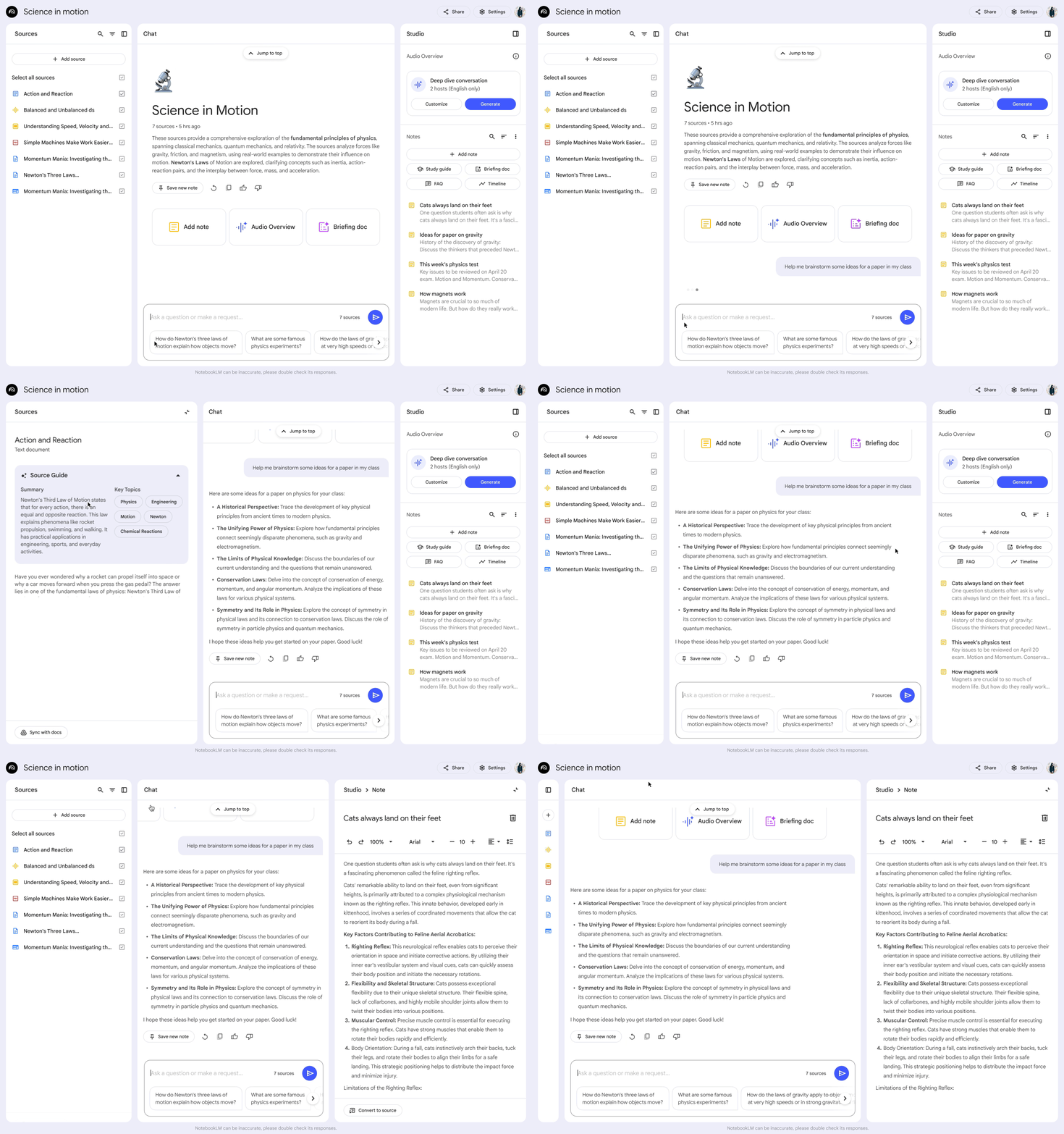
Source: Google
NotebookLM can also generate:
-
quizzes with questions and answers;
-
flashcards for spaced learning.
Both are great for absorbing complex information over time instead of trying to memorize everything at once.

Google AI Studio, v0, and Bolt
One of the most useful tips for beginners: try building the first version of your product using Google AI Studio.
It’s a free alternative to tools like v0 and Lovable, and it’s designed specifically for quickly generating MVPs. From there, you can:
-
move the project into Cursor and refine it;
-
or, even better, study the structure AI Studio generated.
Ask questions like: Why does this folder exist? Why are these files here? This helps you understand how real projects are structured.

Source: Google AI Studio
If you start from scratch directly in Cursor, you’ll likely hit a lot more errors. That’s also a valid learning path – just a slower and more frustrating one.
Google AI Studio, v0, and Lovable are best suited for web products. For mobile apps, there are alternatives too. One of them is Bolt, which uses the Expo framework we mentioned earlier.

Source: Bolt AI builder
Final thoughts
We’ve finally demystified frontend, backend, frameworks, and libraries. If you’re still wondering why a designer needs to know this if AI can generate it all, the answer is simple: AI is a tool. To create great visuals in Figma, you need design skills. To create great code with an AI tech stack, you need a basic understanding of what good code looks like.
For those who read to the end, I’m sharing a hand-picked cheat sheet. It’s a list of the most powerful AI tools for typical design tasks (most are free or have generous tiers!).
Happy building!

